Posted on : 29-06-2010 | By : admin | In : HowTo, VerseVIEW 4
0
The following steps shows how to add a search database to your VerseVIEW.
Please note that the corresponding Bible translation have to be installed before installing the search database.
- Select the SETUP tab and click MANAGE button.
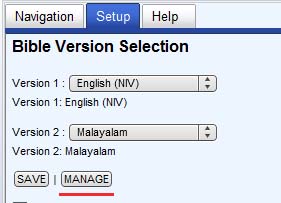
- Click on ADD SEARCH DB button.
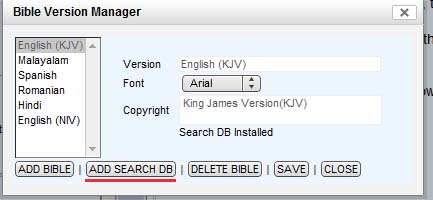
- Select the database file that was downloaded from the VerseVIEW website. Click OPEN
- The search database will get installed and a dialog will pop up.
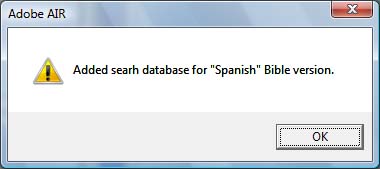
- Click OK to close the dialog box and then click CLOSE.
Posted on : 29-06-2010 | By : admin | In : Features, VerseVIEW 4
0
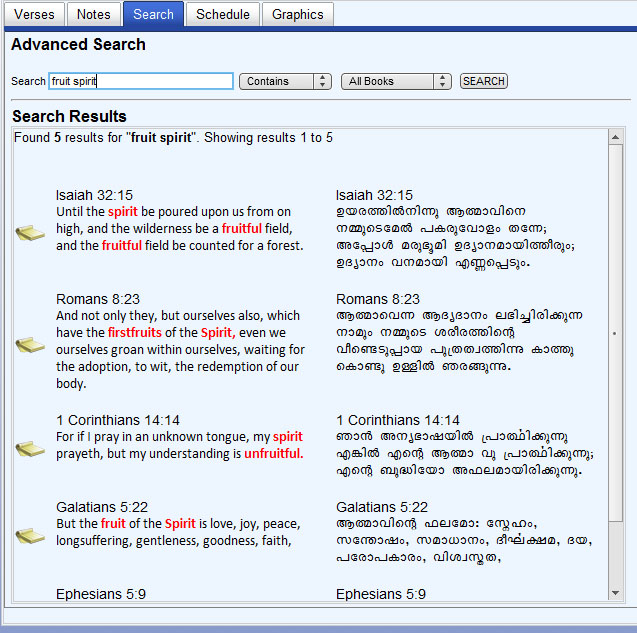
VerseVIEW 4 has the word or phrase SEARCH feature. This allows searching for a word or a phrase in the Bible. VerseVIEW 4 comes with search for English King James Version of the Bible. Search database for other translations are available on the VerseVIEW website for free download.
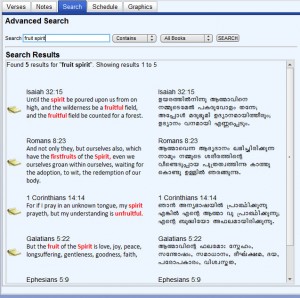
Word Search
Search can be initiated from the main navigation screen. This is a quick search and searches through the entire Bible for verses that contains the keywords.
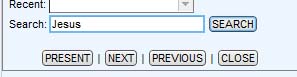
Advanced Search allows to select verses that “contains” or “exact match” the keyword. Search can be filtered to a specific book of the Bible.
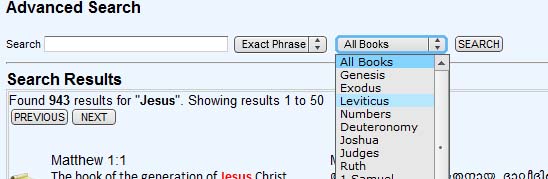
See “Adding Search DB” page to see how to add a search DB to your VerseVIEW.
Posted on : 27-06-2010 | By : admin | In : VerseVIEW
0
VerseVIEW 4 Released
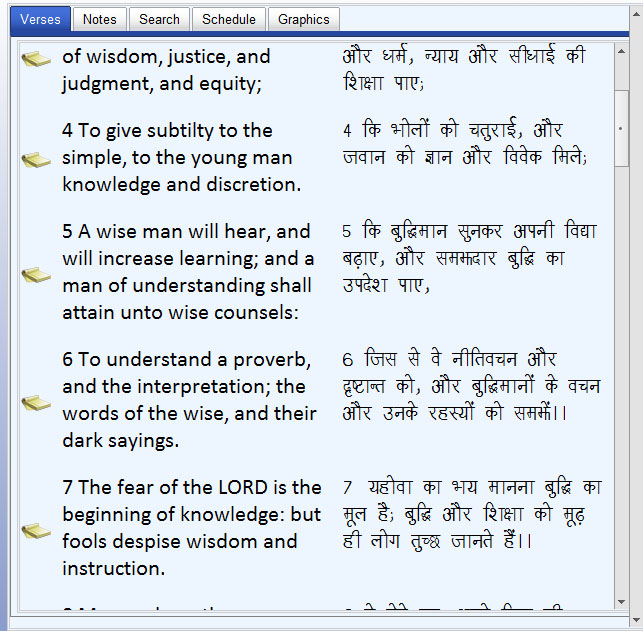
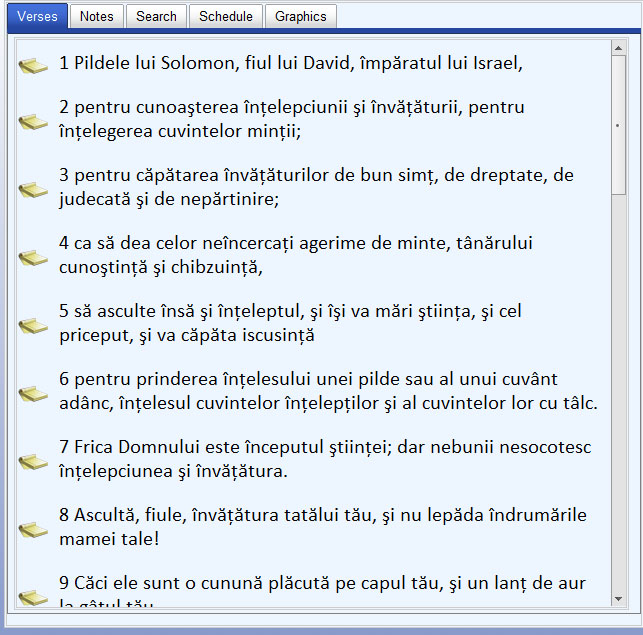
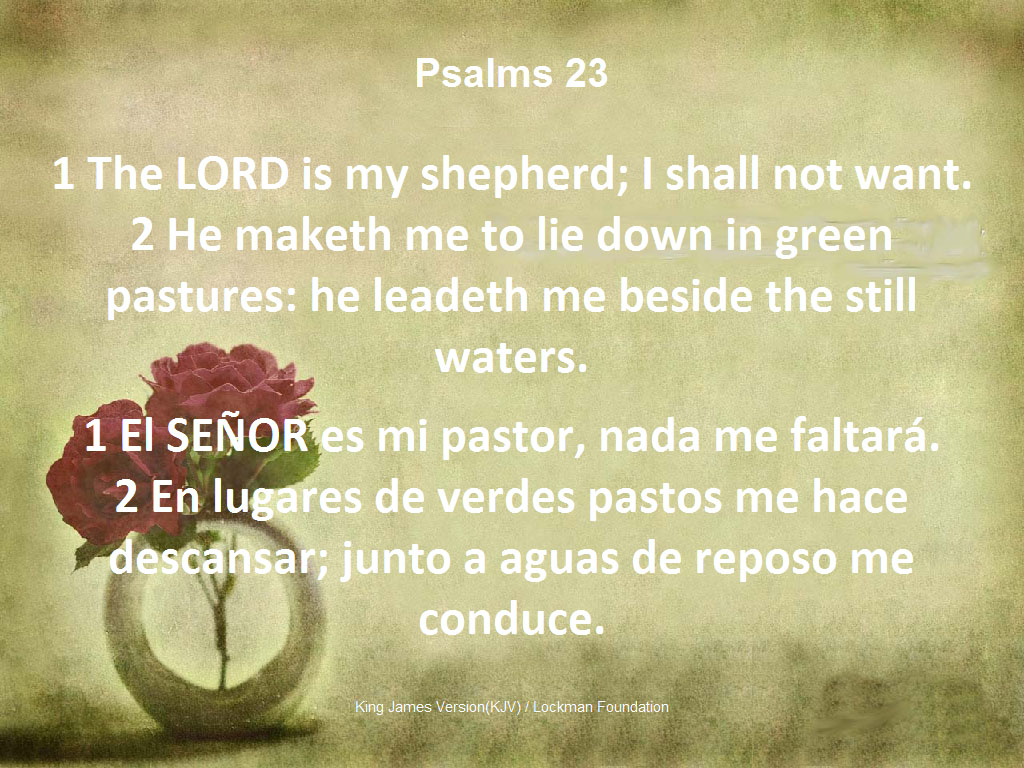
Features include Verse Presentation in multiple translations, Word Search, Chapter / Topic Notes and many more…
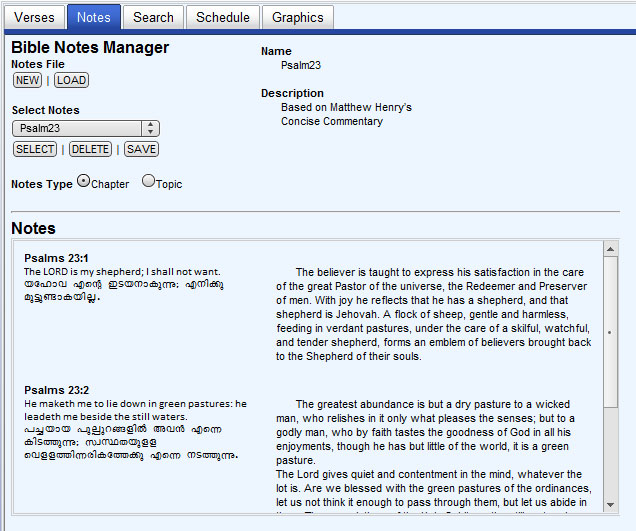
VerseVIEW 4 has the NOTES feature. This allows users to take notes specifically for a verse. Notes can be reviewed for a chapter or as a topic. This tool could be used to create and distribute notes for Bible study, Sermons or Sunday School.
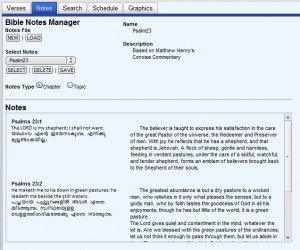
Chapter and Topic Notes
Notes Features
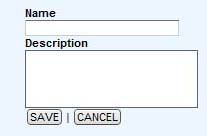
- Create NEW Notes – Prompts the user to a Name and Description for the new notes. Clicking SAVE will generate a new Notes database.
- LOAD Notes from a file – This will open up a file browser dialog box and the user selects the .db file that contains the Notes database.
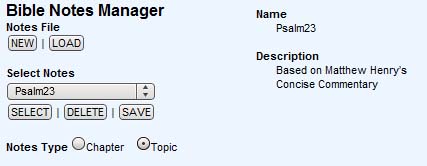
- SELECT Notes – The pull down list shows all available VerseVIEW notes on the system. Clicking SELECT will make the selected note active. Any new notes entry will go to this database.
- DELETE Notes – This allows to delete inactive notes. The Default Notes and active notes can not be deleted.
- SAVE Notes – Saves the notes to Desktop under a folder named “vvnotes”. This file can be zipped and distributed to others.
- Notes TYPE – Selecting Chapter shows the notes for the current selected chapter. Selecting Topic shows all the notes within the selected Notes database.
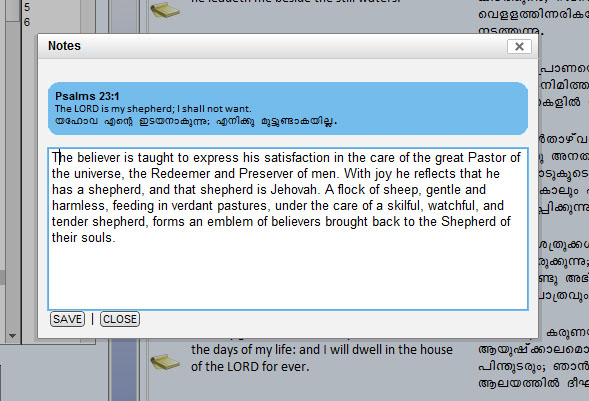
Notes can be entered from the main verse page or from search results page. Clicking on the notes icon will launch a notes entry box. SAVE will add or append the notes to the database.
Notes Entry