Featured Posts

VerseVIEW 6 What is VerseVIEW ? VerseVIEW is a Bible and Song presentation software which will benefit your Church service, Ministry and personal devotion. It enables one to display Bible verses and song lyrics...

Readmore

  • Prev
  • Next

Creating Bible Database for VerseVIEW

Posted on : 04-05-2010 | By : admin | In : HowTo, VerseVIEW

0

This information should help in creating XML Bible Database for VerseVIEW. VerseVIEW uses XML to store the verse of the Bible and other information. The following is an example of the header for spanish_reina.xml file.

<?xml version="1.0" encoding="UTF-8" standalone="yes"?>
<bible>
<fname>spanish_reina.xml</fname>
<revision>2</revision>
<title>Spanish Reina Valera</title>
<font>Arial Unicode MS</font>
<copyright>Public Domain</copyright>
<sizefactor>1</sizefactor>
 <b>
 <c>
 <v>En el principio creó Dios los cielos y la tierra.</v>
.......

The first line is a standard header. The encoding field can be changed if the text is not in UTF-8 encoding.

The “fname” field should match the name of the file.

The “revision” field is numeric and needs to be updated when new revisions are created.

The “title” field is what shows in the VerseVIEW setup screen.

The “font” field defines the font for the text. From version 4 on, this field is comma separated and the user can select the desired font from VerseVIEW.

The “copyright” field is what shows at the bottom of the presentation screen.

The “sizefactor” field is not implemented yet.

Use the “b” tag defines the books. The “c” tag defines the chapter and “v” tag defines the verse. Each of the verses are within the “v” tag.

Please feel free to add your notes and comments to improve this procedure
Installing Fonts on Microsoft Windows based Computer

Posted on : 30-04-2010 | By : admin | In : VerseVIEW

0

  1. Download the true type font from the download page.
  2. Open Windows Explorer or My Computer
  3. Navigate to C:\Windows\Fonts folder.
  4. Click and drag the downloaded font to this folder.

The font will be installed. Re-open VerseVIEW and the font will work.

Add Bible Version to VerseVIEW

Posted on : 30-04-2010 | By : admin | In : VerseVIEW 3

0

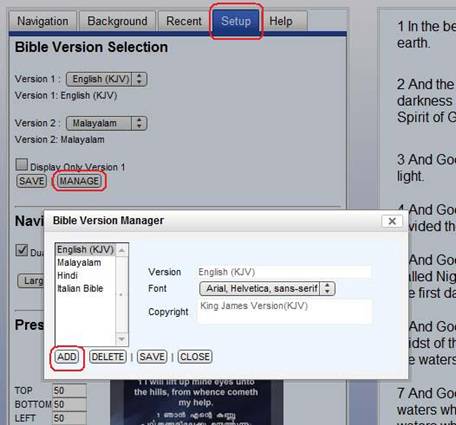
  1. Download the ZIP file containing the Bible translation.
  2. Unzip the file to extract the XML files (Bible Database)
  3. Launch VerseVIEW 3.0 and go to the Setup tab.
  4. Click on “MANAGE” button.
  5. Click on the “ADD” button.
  6. Find the extracted XML file and click “OPEN”.
  7. Selected Bible translation will be installed.
  8. Click “CLOSE” and continue.

Background Graphics 3

Posted on : 04-04-2010 | By : admin | In : Background

0

VerseVIEW Background Graphics set #3

File Size: 0.5MB
Date: 4/4/2010
Download

Background Copyrights: Binu Joseph

VerseVIEW

Posted on : 02-04-2010 | By : admin | In : VerseVIEW

0

VerseVIEW is a Bible presentation software which will benefit your Church service, Ministry and personal devotion. It enables one to display Bible verses in multiple languages simultaneously in a presentation format. It is very useful for bi-lingual Churches that use digital projectors to project verses during services. It also benefits individuals to read Bible text in two languages side-by-side.

You can download the latest version of VerseVIEW for free from the download page. Click Here

Features
– Verses are displayed on Full screen presentation format similar to Powerpoint
– Supports various translations of the Bible
– Automatic support for dual-screen
– Supports user selected background graphics
– Maintains recent selection (History)
– Saves user configuration